
Why NinjaTrader Lags on Your PC (and How a VPS Fixes It)
NinjaTrader lag on your PC? Learn the real causes of freezing, stutter, and slow fills, how to fix each one, and when a low-latency VPS is the answer.
Is It NinjaTrader Lag or Your PC? (How Lag Actually Shows Up)
You are watching a fast tape, you click to enter, and the chart hitches. The DOM freezes for half a second, the fill prints late, and by the time the screen catches up the move is gone. If that sounds familiar, you already know how expensive NinjaTrader lag can be — not in dollars on a spec sheet, but in slipped entries, late stops, and the low-grade dread that your platform will stutter at exactly the wrong moment.
Here is the reassuring part: in the large majority of cases the problem is not NinjaTrader itself. NinjaTrader 8 is a mature Windows desktop application, and when it drags, freezes, or falls behind the market, the cause is almost always the environment it is running in — an overloaded PC, background software fighting for resources, a bloated chart setup, or a home internet connection that simply cannot deliver a clean, low-latency path to your data feed and exchange. Fix the environment and the lag usually disappears.
Before you start diagnosing, it helps to separate symptoms from causes. Lag shows up in a handful of recognizable ways, and each points at a different root:
- UI stutter and freezes — charts hitch, the platform goes unresponsive for a beat, windows redraw slowly. Usually CPU, RAM, or disk pressure on the PC.
- Slow or late fills — orders take longer than they should to acknowledge, or fills print behind the market. Often a network-path or connection problem, sometimes local CPU spikes.
- Disconnects and reconnects — the connection status drops and comes back. Almost always home internet or Wi‑Fi reliability.
- Rising memory or CPU over the session — the platform is fine at the open and crawls by lunch. Points at chart/indicator load or a resource leak building up.
What you need to diagnose it. Before you change anything, get a baseline. Open Windows Task Manager (Ctrl+Shift+Esc) and watch CPU, memory, and disk while NinjaTrader is running during an active session. Note NinjaTrader’s connection status and any disconnect messages in the Control Center log. If you can, run a quick latency and speed test to see what your home connection actually delivers under load. Those three readings — hardware pressure, connection stability, and network latency — tell you which of the causes below is really biting.
Cause #1: An Under-Resourced or Overloaded PC (CPU, RAM, Disk)
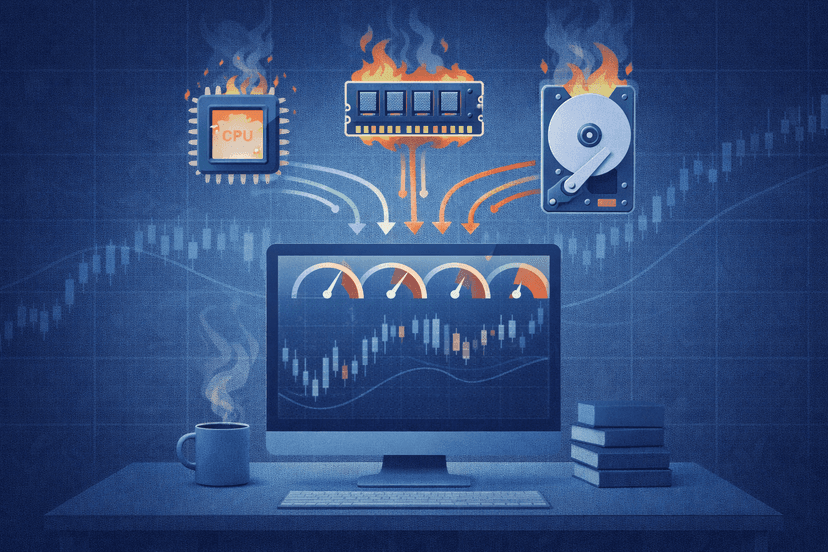
The first and most common cause is straightforward: the machine does not have enough headroom for what you are asking it to do. NinjaTrader’s heavier features are genuinely demanding. Advanced charting, Order Flow+, Market Replay running tick by tick, and any custom NinjaScript indicators or automated strategies all lean on your CPU, RAM, and disk. Stack several charts, a few volumetric or footprint studies, and a running strategy on top of a modest laptop, and you will hit the ceiling fast.
NinjaTrader runs on Windows and, as a .NET desktop application, it benefits from a modern multi-core CPU, several gigabytes of free RAM, and — importantly — a solid-state drive rather than a mechanical one. Tick data and Market Replay hammer the disk, and a slow HDD turns into a silent bottleneck that no amount of chart-trimming fully cures.
How to check. With NinjaTrader open during a live session, pull up Task Manager and watch three numbers:
- CPU — if you are pinned near 100% during normal use, you are compute-bound. Watch for one core maxed out, which often means a heavy indicator or strategy.
- Memory — if you are near your total RAM and Windows is paging to disk, everything stutters.
- Disk — sustained 100% disk activity, especially on a mechanical drive, drags chart loads and data writes.
How to fix it. Close other applications first — browsers with dozens of tabs are notorious memory hogs. If NinjaTrader itself is the load, reduce the number of open charts and data series, and be honest about whether you need every study running at once. If the hardware is simply undersized, the durable fixes are more RAM, a move from HDD to SSD, and a CPU with enough cores to handle your workload. Many charting-and-strategy setups that struggle on a budget laptop run comfortably once given a modern multi-core CPU and 8 GB or more of headroom. Hardware that runs heavy charting and tick data all day is exactly what dedicated trading infrastructure is built for — more on that below.
Cause #2: Background Load, Windows, and Power Settings
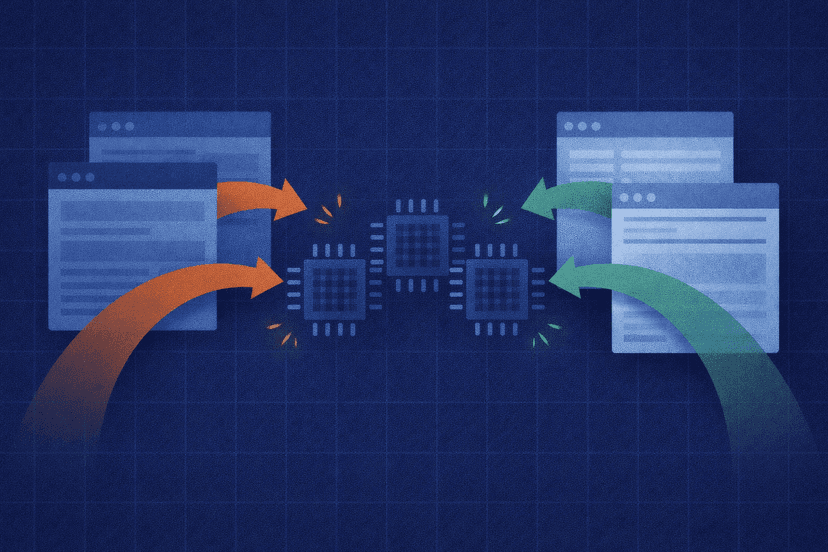
Even a capable PC lags when Windows and background software steal resources at the wrong moment. This is the sneakiest category because the platform can be perfectly fine for an hour, then freeze the instant an antivirus scan kicks off or Windows decides to download an update mid-session.
The usual culprits are predictable once you go looking for them, and the fixes are quick:
- Startup apps and background processes. Cloud sync clients, chat apps, game launchers, and browser helpers all consume CPU and memory. Open Task Manager’s Startup tab and disable anything you do not need running while you trade.
- Antivirus scans. A full-disk scan during the session spikes CPU and disk. Schedule scans outside trading hours and, if your software allows it, exclude NinjaTrader’s data folders from real-time scanning.
- Windows Update. Updates that download and install mid-session are a classic cause of sudden, unexplained lag and even forced reboots. Set active hours so Windows never restarts during your trading window.
- Power plan. On laptops especially, a balanced or power-saving plan throttles the CPU to save battery, which starves NinjaTrader exactly when volatility spikes. Switch to the High Performance plan and keep the machine plugged in.
- Graphics drivers. NinjaTrader’s charts are rendered on your GPU; out-of-date graphics drivers can cause redraw stutter. Keep them current.
Work through these one at a time and re-test after each change so you know which one mattered. Most traders find that disabling a couple of startup hogs and fixing the power plan removes the worst of the intermittent freezes.

Cause #3: Your Data Feed, Charts, and Indicators
Sometimes the lag is self-inflicted through the workspace itself. It is easy to accumulate a sprawling setup — a dozen charts across several instruments, each with multiple studies, all pulling live tick data — and then wonder why the platform crawls. NinjaTrader has to process every incoming tick against every chart and indicator you have open, and that work adds up.
The most common workspace-level offenders:
- Too many tick or volumetric charts. Tick-based and Order Flow charts are far more data-intensive than time-based charts. A wall of them multiplies the processing load on every update.
- Heavy or inefficient NinjaScript indicators. A poorly written custom indicator that recalculates across all bars on every tick can pin a CPU core by itself. Third-party indicators vary wildly in efficiency.
- Excessive historical data loaded. Pulling months of tick data into a chart forces a huge load and keeps a lot in memory. Load only the lookback you actually use.
- Market Replay left running. Replay reprocesses tick data continuously and is heavier than live data; close it when you are done reviewing.
How to trim it. Audit your workspace with a cold eye. Close charts you are not actively trading. Reduce the days-to-load on tick charts to the minimum you need. Remove or replace indicators you are not using, and if one study seems to be the problem, disable it and watch whether CPU drops. A lean, deliberate workspace not only lags less — it is easier to trade from. For traders building out a broader automated setup, our guide to the algorithmic trading tech stack covers how platforms like NinjaTrader fit alongside data feeds and execution tools without overloading a single machine.
Cause #4: Network Path and Home Internet (the Real Ceiling)
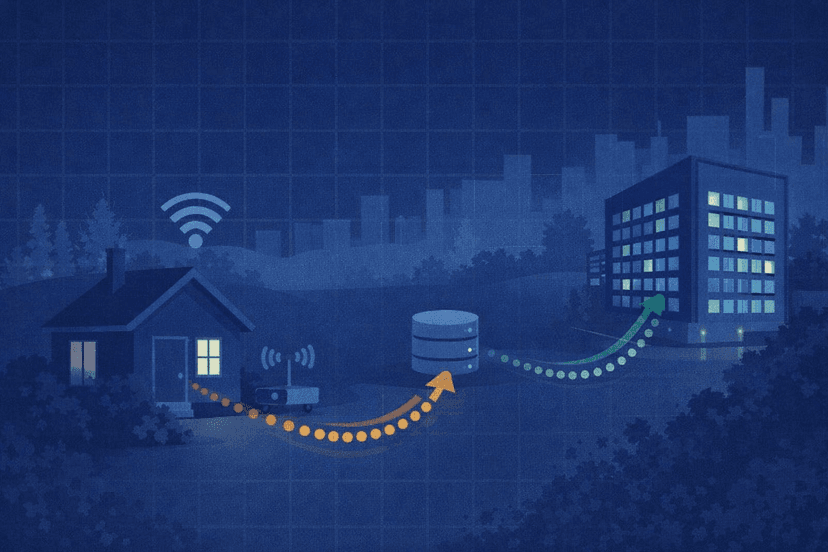
Here is where local fixes stop working. You can max out your hardware and trim your workspace to nothing, but you cannot re-route your home internet to sit closer to the exchange. NinjaTrader’s fills and data updates travel from your PC, through your router, across your ISP’s network, and out to the servers hosting your data feed and clearing. Every hop adds latency, and every weak link adds instability.
The network-side causes of lag are the ones a home setup handles worst:
- Distance to the data center. Futures data and order routing are concentrated around specific exchange hubs. If you are trading from a home hundreds or thousands of miles away, your round-trip time is dictated by physics and your ISP’s route, not by your PC. That baseline latency shows up as fills that print slightly behind the market.
- Wi‑Fi. Wireless connections are variable by nature — interference, distance from the router, and other devices all cause jitter and brief dropouts. For trading, a wired Ethernet connection is always better, but even wired home internet has limits.
- ISP reliability and disconnects. Home broadband is not built for zero-downtime uptime. A brief drop that you would never notice while streaming video can knock NinjaTrader offline and interrupt a strategy or leave a position unmanaged.
- Congestion. Shared home bandwidth — someone streaming, gaming, or backing up to the cloud — steals throughput and adds latency spikes right when you need a clean connection.
You can improve the margins: switch from Wi‑Fi to wired Ethernet, restart your router, and stop other heavy usage during your session. Those help. But they cannot change the fundamental problem — a home connection is a consumer-grade, best-effort link that sits far from the exchange and offers no uptime guarantee. This is the ceiling, and it is exactly the ceiling a VPS is built to break.

How a VPS Fixes What Your PC Can’t
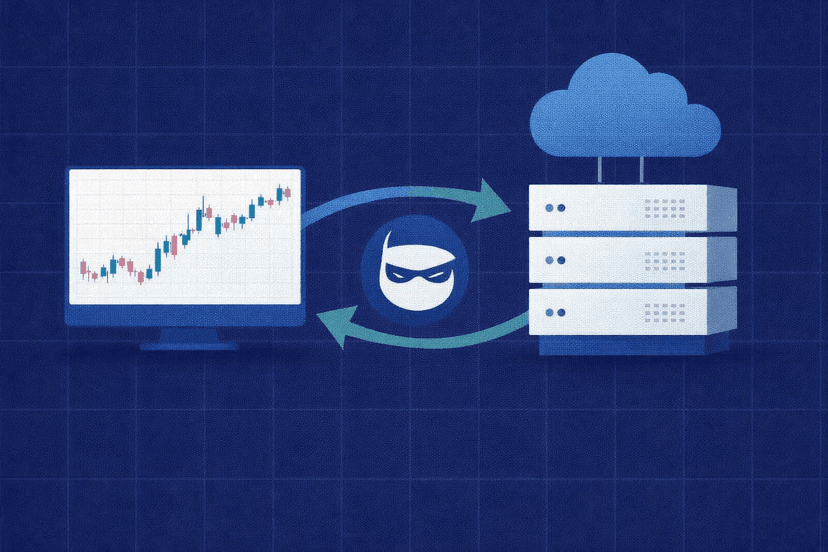
A trading VPS (virtual private server) is a Windows machine that lives in a professional data center and stays on around the clock. You run NinjaTrader on it exactly as you would on your desktop — remoting in to see the same charts and DOM — but the platform itself is executing on hardware and a network that a home setup cannot match. That distinction is what fixes the causes above.
Concretely, a VPS addresses the environment-driven lag that no local tweak can reach:
- Data-center hardware. A trading VPS gives you dedicated CPU cores, ample RAM, and fast NVMe storage tuned for exactly this workload. Heavy charting, Order Flow+, and running strategies get the headroom they need without competing with your everyday computing.
- A short, wired, low-latency route. Because the server sits in a data center close to the exchange and financial infrastructure, the network path is dramatically shorter and more consistent than a home connection. That trims the baseline latency that shows up as late fills. You can measure the difference to your own broker or feed with our broker latency checker.
- Always-on uptime. A VPS is designed to stay connected 24/5 with enterprise-grade internet and power redundancy, so a home Wi‑Fi drop or a mid-session Windows reboot no longer takes your platform offline. For prop-firm evaluations and funded accounts where a missed stop can end a run, that reliability matters as much as the speed.
- Separation from your daily machine. Your trading platform runs in a clean, dedicated environment — no game launchers, no cloud sync, no antivirus scan firing off mid-session.
Honest limits. A VPS is not magic. It will not turn a losing strategy into a winning one, and it cannot overcome a poorly written indicator that pins a CPU core — you still need to keep your workspace lean. What it does do is remove the environment-driven causes of lag: undersized hardware, background interference, a distant network path, and unreliable home internet. For NinjaTrader specifically, a purpose-built NinjaTrader VPS comes ready for the platform, and if you trade CME futures, a server in a New York-area facility like our NY4 trading VPS puts you on fast, stable infrastructure. If you are new to the concept entirely, our primer on what a trading VPS is and how it optimizes your strategy explains the fundamentals.
How to Move NinjaTrader to a VPS (Step-by-Step)
Moving NinjaTrader to a VPS is more straightforward than most traders expect. Here is the process from start to first trade.
What you need before you start:
- An active NinjaTrader account and your login/connection details for your data feed or brokerage.
- A trading VPS plan sized for your workload (for a typical multi-chart NinjaTrader setup, aim for a plan with a modern multi-core CPU and at least 4–8 GB of RAM).
- The Remote Desktop Connection app, which is built into Windows, or an RDP client on Mac.

Then work through the steps in order:
- Step 1 — Provision the VPS. Choose a plan and a data-center location close to your exchange or data feed. Once it is set up, you will receive the server’s IP address and Windows login credentials.
- Step 2 — Connect via Remote Desktop. Open Remote Desktop Connection, enter the VPS IP and credentials, and log in. You will see a clean Windows desktop running in the data center.
- Step 3 — Install NinjaTrader. Download the NinjaTrader installer from the official site directly onto the VPS and install it as you would on any Windows machine. Some VPS plans come with trading platforms pre-installed, which skips this step.
- Step 4 — Log in and connect your feed. Open NinjaTrader on the VPS, sign in, and configure your data-feed or brokerage connection with your credentials.
- Step 5 — Rebuild or import your workspace. Recreate your charts, indicators, and strategies, or import your saved workspace and template files so your setup matches what you had locally.
- Step 6 — Verify latency and stability. Confirm your connection status is stable and check your latency to the feed. Run through a session on the sim or a small size before committing your full trading to the new environment.
Troubleshooting common issues. A few problems come up often enough to plan for:
- NinjaTrader still feels laggy over RDP. Remember that Remote Desktop only streams the screen — the platform is executing on the VPS. If the display feels sluggish, lower the RDP resolution and color depth, or check your home connection to the VPS. The trade execution is unaffected by RDP display quality.
- Connection to the data feed fails. Double-check credentials and make sure the VPS firewall is not blocking NinjaTrader’s ports. A quick support ticket usually resolves port issues.
- Charts load slowly on first launch. Initial historical-data downloads take time; this is a one-time cost, not ongoing lag. Load only the lookback you need.
- Unsure the VPS is actually faster. Use the latency checker to compare the VPS’s round-trip time against what you measured at home. The difference is the environment-driven lag you just eliminated. Our roundup of the top benefits of a trading VPS covers what else changes once you make the move.
Frequently Asked Questions
Why does NinjaTrader lag or freeze on my PC?
In most cases the cause is the environment, not the software. The four common culprits are an under-resourced or overloaded PC (CPU, RAM, or a slow mechanical disk), background load from Windows updates, antivirus scans, and startup apps, a bloated workspace with too many tick charts and heavy indicators, and an unreliable or distant home internet connection. Diagnose by watching CPU, memory, and disk in Task Manager during a live session, checking your connection stability, and measuring your latency. Fix the environment and the lag usually disappears.
Will a VPS fix NinjaTrader lag?
A VPS fixes the environment-driven causes of lag: it gives NinjaTrader dedicated data-center hardware, a short low-latency network path close to the exchange, and always-on uptime that a home connection cannot guarantee. That eliminates undersized hardware, background interference, distance to the feed, and home internet drops. It will not fix a poorly written indicator that pins a CPU core or turn a losing strategy profitable — you still need a lean workspace and a sound strategy — but for lag caused by your PC or your internet, a VPS is the direct fix.
What are the recommended specs for running NinjaTrader smoothly?
NinjaTrader runs on Windows and, as a .NET desktop application, benefits from a modern multi-core CPU, several gigabytes of free RAM, and a solid-state drive rather than a mechanical one — tick data and Market Replay are disk-intensive. A single-chart setup is light, but multi-chart workspaces with Order Flow+, custom indicators, and running strategies want more headroom. For a busy setup, target a machine with a multi-core CPU and 8 GB or more of available RAM. A trading VPS sized for NinjaTrader provides these resources without competing with your everyday computing.
Does running NinjaTrader over Remote Desktop add lag?
Remote Desktop only streams the screen image from the VPS to your local device — NinjaTrader itself executes on the VPS, close to the exchange. So RDP display quality affects how the screen looks to you, not how fast your orders reach the market. If the display feels sluggish, lower the RDP resolution and color depth or check your connection to the VPS. Your actual trade execution runs on the server’s fast, low-latency connection regardless of your home internet speed.

About the author
Matthew Hinkle
Lead Writer & Full Time Retail Trader
Matthew is NYCServers' lead writer. In addition to being passionate about forex trading, he is also an active trader himself. Matt has advanced knowledge of useful indicators, trading systems, and analysis.
Areas of Expertise