
MQL5 VPS Not Trading? Troubleshooting and Fixes
MQL5 VPS not trading? Diagnose migration, EA, broker, log, and server issues with a step-by-step checklist that helps restore automated trades.
MQL5 VPS not trading is a symptom, not a diagnosis, so start with evidence rather than with EA settings. Run five checks first: is the virtual server actually Started, is it connected to the right broker account, when was the last migration, how many charts and EAs are running remotely, and what does the first relevant journal error say. Those five data points narrow the cause to one area before you change anything.
A silent virtual platform is something to diagnose, not proof that hosting is broken. The environment might be running perfectly while your EA sits waiting for a signal that never fired, or the migration might have copied a chart with no EA attached to it. Work through the checks below in order and read the logs before you touch anything, because re-synchronizing overwrites the remote environment with your local one and destroys the evidence you need.
MQL5 VPS Not Trading? Run This Five-Minute Check
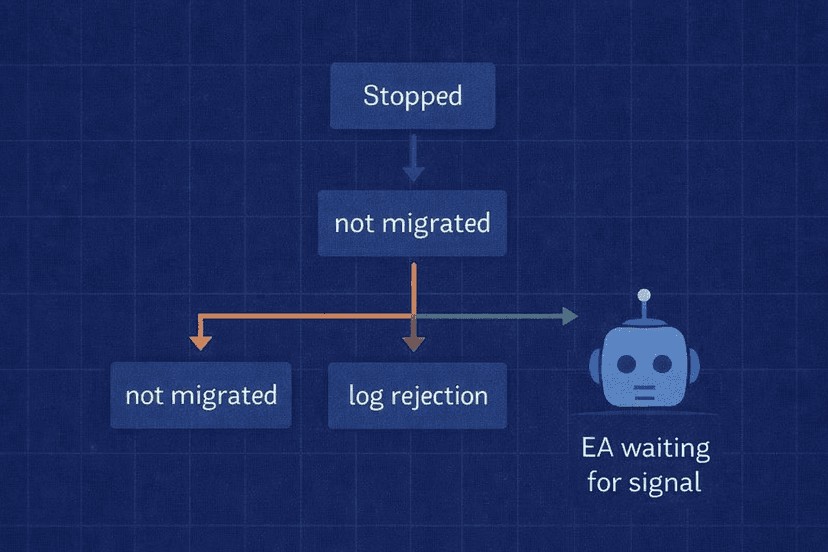
Open the Toolbox in your local MetaTrader terminal, switch to the VPS tab, and match what you see against the table below. Each row moves you to one specific next action instead of a general settings sweep.
| Symptom / evidence | Likely cause | Next action |
|---|---|---|
| VPS tab shows Stopped | Remote platform was stopped manually, or the subscription lapsed | Start it from the VPS tab and confirm the subscription is still active |
| Started, but the running chart / EA count is zero | The environment was never migrated, or the migrated charts had no EA attached | Attach the EA to its chart locally, then migrate “Experts” or “All” |
| Started, but not connected to the broker | Wrong account or trade server, or an account type the virtual platform cannot host | Verify the account and server; one-time-password accounts are not supported |
| Experts log shows an initialization failure | Bad inputs, a missing dependency, or an unsupported feature such as a DLL call | Fix the cause locally, then synchronize once and re-read the log |
| Terminal log shows a trade-server return code | Broker or order-construction problem: market closed, invalid volume, invalid stops, insufficient funds, trade disabled | Match the return code to its meaning and fix the account, symbol, or order parameters |
| Clean logs, EA initialized, no order attempts | The EA is waiting: schedule, session, spread or news filter, warm-up history, or entry conditions not met | Reproduce the conditions on a demo account or in the Strategy Tester |
One row deserves an early warning because it sends traders down the wrong path: if your local AutoTrading button went grey after migration, that is expected behaviour, not a fault. MetaTrader deliberately disables local automated trading during the transfer so the same EA cannot trade the same account twice. Remote automated trading is always allowed on the virtual platform regardless of your local permission state.
Verify the Virtual Server and Trading Account
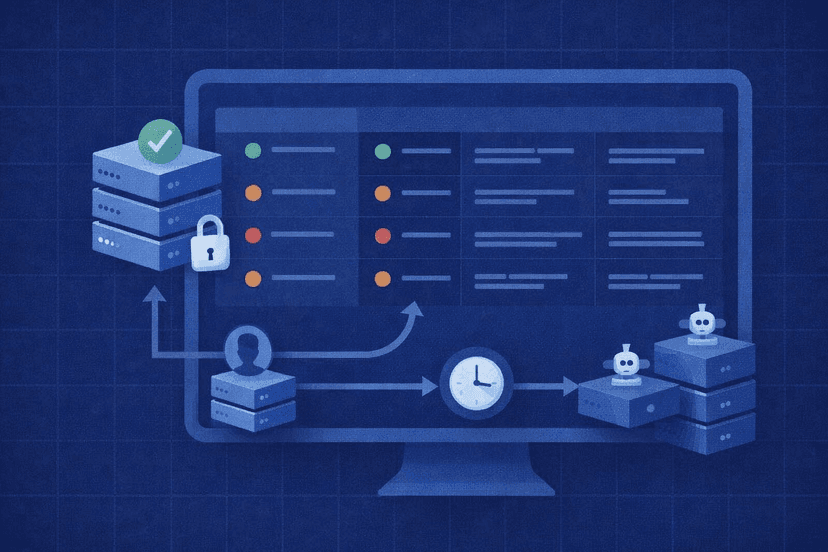
The VPS tab in the Toolbox is your entire control panel for the hosted platform — one key difference between MQL5 VPS and a Windows VPS is that there is no desktop to log into. It reports the remote Started or Stopped state, whether the virtual terminal is connected to the broker, CPU, memory and disk graphs, the number of charts, EAs and indicators currently running, the time of the last migration, and the Start and Stop controls themselves.
Check those fields in a fixed order. Status first: Stopped means nothing is executing, full stop. Then the broker connection and the account number — a hosted platform pointed at a different account than the one you are watching will look “quiet” forever. Then the running counts: a healthy migrated setup shows the same number of EAs you expect to be trading. Then the last migration timestamp, which tells you whether the remote environment predates the changes you made locally.
Treat resource usage as a secondary signal, and read the actual CPU, memory, and disk graphs instead of assuming what your setup needs — demand varies with the EA, the charts, and the indicators they carry. Sustained saturation is worth investigating; idle graphs on a Started server simply mean the EA is not doing heavy work right now.
Be careful with the difference between stopping and cancelling. Stopping the virtual server is temporary and does not cancel your subscription — you can start it again and continue. Cancelling deletes the virtual platform along with every migrated setting, and there is no recovery. Subscription expiry has the same effect: the hosted data is deleted, and renting again means building and migrating the environment from scratch. If your EA vanished after a lapse in payment, that is why.
Rebuild and Synchronize the Trading Environment
Migration copies your current active local environment to the virtual platform. That single sentence is the key to “EA not placing trades” cases: whatever was not set up locally at the moment you migrated does not exist remotely.
Prepare the local terminal properly before you synchronize again:
- Attach every EA to a chart. Charts without an EA are ignored during synchronization, even if they carry custom indicators. An indicator-only chart will not be transferred, so anything your strategy depends on must sit on a chart that hosts an EA.
- Check symbol, timeframe, and inputs on that chart. The remote platform runs exactly what you migrated — including a stale lot size or a demo-only input left over from testing.
- Keep the symbols you need in Market Watch. Critical symbols should be present locally before migration; non-standard symbols and timeframes are not supported on the virtual platform.
- Pick the right migration mode. “Experts” moves your EAs and indicators. “All” also transfers Signal settings. Choose the mode that matches what you actually run.
Migration is one-way. Nothing travels from the virtual platform back to your computer, and any change you make locally afterwards — a new input value, a different timeframe, an extra chart — has no effect remotely until you synchronize again. Tweak inputs locally and then wait for different behaviour, and you are watching an environment still running your last migration’s values.
After synchronizing, confirm the result rather than assuming it: the last-migration timestamp should update, and the remote chart and EA counts should match your local setup. If the counts are still zero, the EA was not attached to a chart when you migrated. Synchronize once, verify, then move to the journals — repeated re-migration overwrites the remote environment and wipes out the state you are trying to diagnose.

Read the VPS Journal Before Guessing
The hosted platform keeps its own logs, and they are the only place that tells you what actually happened. Open the VPS tab and go to the Journal, or use the Journal Viewer, then choose which log you need. Terminal logs cover platform events and trades. Experts logs cover the operation of EAs and indicators. Both support filtering by text and by time range, so narrow the window to the moment a trade should have fired.
Read the sequence in the order the platform produces it: startup, broker connection, EA initialization, then order-send activity. A gap tells you where the chain broke. No startup entries means the server was not running. Startup but no connection means an account or trade-server problem. Connection but no initialization means the EA never loaded. Initialization with no order attempts means the EA is running and simply has not seen a valid setup.
When you do find order attempts, the trade-server return code names the cause. The official MT5 return codes separate configuration and broker issues cleanly: invalid volume, invalid price, invalid stops, trade disabled, market closed, insufficient funds, no prices, too many requests, autotrading disabled on the server or client side, and no connection to the trade server. Each points somewhere specific — invalid volume is a lot-step or minimum-lot mismatch, invalid stops is a stop-level violation, market closed is a session issue, insufficient funds is free margin. Read the code, then fix the matching setting.
Menu labels differ slightly between MT4 and MT5, so if you are on MT4 look for the equivalent virtual-hosting Journal and Experts views rather than the exact MT5 wording, and check that platform’s own documentation where the two differ. The order of investigation still applies: startup, connection, initialization, then order activity.
Fix Compatibility, Dependencies, and EA-Specific Causes
Some EAs will never run on MQL5 virtual hosting, no matter how clean the migration is. The platform enforces hard restrictions, and hitting one of them looks exactly like a mysterious failure to trade.
- DLL calls are forbidden. If your EA or one of its dependencies imports a DLL, it cannot work on the virtual platform. Enabling DLLs locally changes nothing remotely — this case needs a full Windows VPS instead.
- Scripts are not migrated. Only EAs and indicators move across, so a workflow that leans on a script will lose that piece.
- Non-standard timeframes and symbols are not migrated. Custom-period charts and synthetic instruments stay behind.
- One-time-password accounts cannot be hosted. An account that requires OTP authentication will not migrate at all.
- WebRequest URLs must be allowlisted first. If the EA calls out to a web service, add the trusted URLs in the local platform settings before migrating, or the remote copy will fail those calls.
If none of those apply and the Experts log shows a clean initialization with no order attempts, the EA itself is the remaining variable. Work through its own gating conditions: trading schedule and session hours, spread and news filters, minimum bars of history or a warm-up period before the first signal, licensing, the account type it expects, the broker’s symbol suffix (an EA looking for “EURUSD” will find nothing on a “EURUSD.pro” feed), input values, and the actual entry logic. A trend EA in a flat market is behaving correctly by doing nothing.
Test those hypotheses somewhere safe. Forward-test the same configuration on a demo account or use the Strategy Tester rather than forcing a live order to see whether the EA “still works”. Forcing trades on a live account to test a theory costs real money without isolating which condition was blocking the EA.
Remember that a running virtual server never guarantees execution. Hosting keeps the platform online next to the broker; the EA’s own conditions, the broker’s rules, market hours, available funds, license state, and symbol settings still decide whether an order is sent and accepted.
Confirm the Fix and Prevent a Repeat
Do not close the case on a hunch. Require evidence that the chain is intact end to end before you walk away:
- The VPS tab shows Started and connected to the correct broker account.
- The remote chart, EA, and indicator counts match the setup you intended to migrate, with a current last-migration timestamp.
- The Experts log shows a clean initialization for each EA, with no errors after startup.
- The Terminal log shows the broker connection and, where relevant, accepted orders instead of rejection codes.
- You have either a valid trade on a demo run or a documented, explained “waiting for signal” state — not silence you have decided to trust.
Preventing the next incident comes down to habit. Re-synchronize after every change to the local environment, because nothing propagates on its own. Review the journals immediately after each migration instead of days later, when the useful entries are buried. Keep an eye on resource graphs and the subscription state, since expiry deletes the hosted environment outright. And export your EA settings to a file so a rebuild takes minutes rather than an evening of guesswork.
If your diagnosis ends at a restriction rather than a mistake — a DLL dependency, a script, a custom symbol, an OTP account, or a second platform you need alongside MetaTrader — the answer is a different hosting model, not more troubleshooting. A managed virtual platform is deliberately narrow; a full Windows MT5 VPS is not.
Frequently Asked Questions
Why is AutoTrading off on my local MetaTrader after MQL5 VPS migration?
That is intentional. MetaTrader disables local automated trading during the transfer so the same EA cannot trade the same account from two places at once. It has no bearing on the hosted copy: remote automated trading is always allowed after migration, regardless of the local platform’s or the EA’s permission settings.
Do I need to keep my computer and MetaTrader open?
No. Once the environment is migrated, the virtual platform runs independently of your machine. You only need the local terminal to change the setup, synchronize again, or read the VPS monitoring data and journals.
Does changing EA inputs locally update the MQL5 VPS?
No. Migration is one-way and only happens when you trigger it. Change the inputs locally, then synchronize again and confirm the last-migration timestamp updated. Until then, the hosted EA keeps running the values it received at the previous migration.
Can an EA that uses DLL files run on MQL5 VPS?
No. DLL calls are forbidden on the MQL5 virtual platform, and there is no way to enable them remotely. An EA with a DLL dependency needs a Windows VPS running the normal desktop platform.
Where can I see why an EA order was rejected?
In the VPS journals. The Terminal log records platform events and trades, including the trade-server return code for a rejected order, while the Experts log shows what the EA was doing at the time. Filter both by the incident’s time range, then look up the return code — invalid volume, invalid stops, market closed, trade disabled, and insufficient funds each point to a different fix.

About the author
Thomas Vasilyev
Writer & Full Time EA Developer
Tom is our associate writer, and has advanced knowledge with the technical side of things, like VPS management. Additionally Tom is a coder, and develops EAs and algorithms.
Areas of Expertise